Purpose: share serial port over the network using TCP protocol.
TCP Server listens to local TCP port(s): separate TCP ports for data and modem registers and redirects traffic to existing (or virtual) COM port.
Usually this device is used either to share data between multiple clients (like Splitter), or to redirect COM port data to multiple computers (see Share COM port over network).
This device does not create new virtual serial ports.

Important: in case of connectivity issues, add inbound allow Windows firewall rule for
EterlogicVspeDeviceManagerService.exe located in VSPE program folder.
"Test TCP ports..." button tries to bind TCP ports. Windows Firewall popup window may appear if needed.
"Check firewall rules..." button validates existing rules and displays suggested configuration command.

Please note that by default TCP connection is not encrypted.
To encrypt traffic, configure TLS security settings.

Be VERY CAREFUL and make sure that firewall is properly configured to allow only trusted connections!
TcpServer is implementing data transformers before writing to COM port or sending network data (see Transformers).
To avoid write collisions for a known data protocol (where data from many clients may be sent in small chunks), it is recommended to use Wait for complete data transformer or another transformer. This will help to ensure that the data sent to COM port is a complete packet and does not consist of small fragments mixed in random order from multiple clients.
TcpServer is creating unique serial port write transformers for every TCP connection.
It means that if we have 10 inbound TCP connections, TcpServer will create:
    - 10 transformers to write to serial port
    - 10 transformers to send data to TCP clients (this is required for certain protocols)

When remote client gets disconnected, its respective serial port writer transformers are destroyed and buffered transformer state is lost.
Control port can be used only by TCP Client.
Number of TCP clients is not limited.
Source COM port can be opened in read-only or write-only mode.
If needed, configure Windows Firewall (Share COM port over network) to allow requests for inbound TCP ports. You can also click "Test TCP ports..." and "Check firewall rules..." buttons to create or validate Windows Firewall rules.
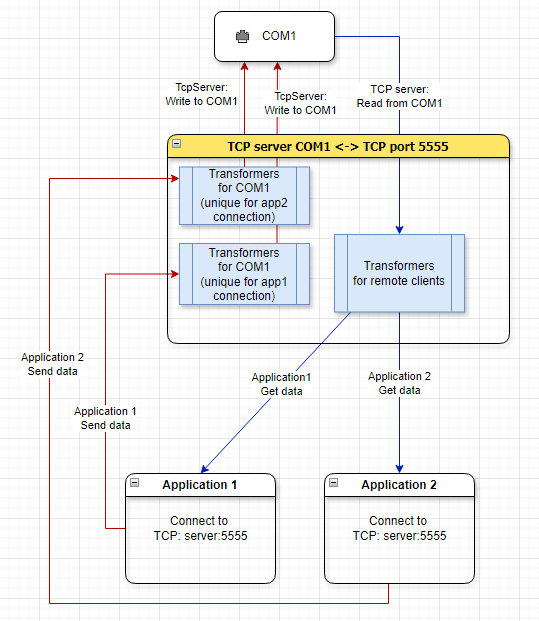
Data flow diagram
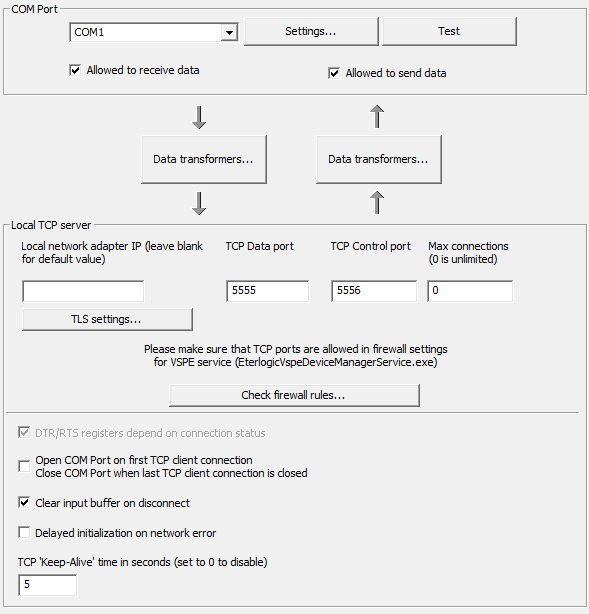
TCP Server settings
- TCP data port: TCP port for data stream.
- TCP control port: TCP port for modem registers control (from TcpClient).
- Max connections: limit number of incoming TCP connections. If set to 0, there is no limitation. This setting is applied to both TCP control and data ports.
- Network adapter IP specifies network interface to listen for incoming connections. Leave it empty to accept connections from any interface (listen on all available interfaces).
- Read-only/Write-only: enable reading/writing to source COM port.
- DTR/RTS depending on connection status: sets DTR/RTS when incoming TCP connection established. Resets registers when the last client has been disconnected.
- Open COM port on first connection, close COM port when last connection is closed.
- Clear input buffer on disconnect: on first client connect/full disconnect, clear COM port input buffer to get rid of stale data.
- Should reinitialize device on network error: if checked and TcpServer fails to initialize because of network error (for example, when network interface is not accessible yet), it will switch to Waiting state and will retry later.
- TCP Keep-Alive time (in seconds): Determines how often TCP sends keep-alive packets to check if the remote connection is still alive. This is necessary to detect when a remote client disconnects without properly shutting down the TCP socket (for example, due to a network error). Set to 0 to disable sending keep-alive packets.
- Read and discard stale data from COM port: Continuously read and discard incoming data from the COM port when no TCP clients are connected. This prevents stale data from being sent when TCP client connects. Additionally, it drains COM port input buffer all the time not allowing it to get full.
- Disable TCP buffering: If this feature is enabled, TCP packets will be sent immediately without buffering. This can reduce latency for small packets, but may also increase network traffic and cause packet fragmentation. For more information, see TCP_NODELAY flag in MSDN.
To compress/decompress traffic, you should add
Compress data transformer to "TCP server" flow and
Decompress data transformer to "COM port" flow. Do not forget to add the same transformers to
TCP Client.
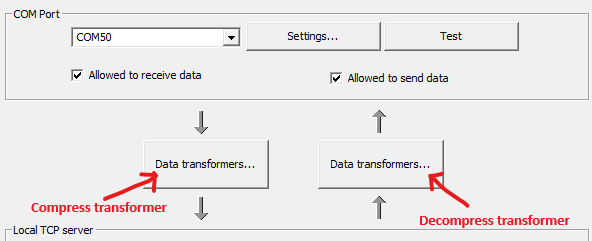
TCP server transformers for compression support
By default, source COM port settings may have "Merging Write Requests" setting set to "yes". This improves performance when writing data in small chunks, but in some cases may be undesirable. If you want better accuracy, set it to "no".

Merging Write Requests in Source COM Port setting
- See also:
-
